
How to Compare Two Construction Schedule PDFs and See What Changed in Your Scope
Comparing two construction schedule PDFs means lining up the GC's old schedule and the new one activity by activity, to see what was added, removed, moved or given a new duration. For a subcontractor the question is narrower: what changed in your scope, and what does it do to your crews?
Most GCs issue an updated schedule every month or so. The new PDF looks almost the same as the last one, which is exactly why the changes are easy to miss.
What changes between two schedule revisions?
Matched by activity ID, every activity in your scope falls into one of these:
- Added: in the new schedule, not the old one. New scope, or work split out of an existing activity.
- Removed: in the old schedule, gone from the new one. Some were deleted; others are probably completed and dropped off the update because they finished.
- Duration changed: the same activity, with more or fewer working days.
- Moved: the same duration, starting earlier or later.
- Progress: an actual start or finish recorded since the last update.
- Renamed: the same ID with a new name or area.
- Unchanged: everything else.
Duration changes matter most. The labor hours in your estimate don't change when the GC squeezes an activity, so a shorter duration needs a bigger crew for the same hours.
Why is comparing by eye so hard?
Because the two PDFs are rarely laid out the same way. Activities move between pages as the schedule grows, WBS groups get reorganized, and started activities switch to actual dates (P6 marks them with an "A"). A 40-page schedule with a few hundred of your activities is too much to check line by line, and the one date that moved is the one you miss.
The activity ID is the key. Names get reworded and activities move around the page, but the ID stays the same from one update to the next.
How do I compare two schedule PDFs by hand?
- Get both schedules into a spreadsheet, one sheet each: activity ID, name, start, finish and duration. Copying from a PDF rarely keeps the columns lined up, so expect cleanup.
- Filter each sheet to your scope.
- On the new sheet, look up each ID in the old sheet (XLOOKUP or VLOOKUP) and bring across the old start, finish and duration.
- Flag the differences: a blank lookup is an added activity, a different duration or start is a change, and IDs left over on the old sheet were removed.
- Count how far each activity moved in working days, not calendar days.
It works, but it takes an afternoon, and next month's update means doing it again.
Can I compare them for free without doing it by hand?
Yes. Sandbox Compare does the steps above for you:
- Drop in the old and the new schedule: the Primavera P6 or Microsoft Project PDF, or the XER, XML or MPP file if the GC sends one.
- Pull your scope by keyword.
- Read the result: added, removed, duration changed, moved, progress and renamed activities, with how many working days each one moved, as a list or on a Gantt chart.
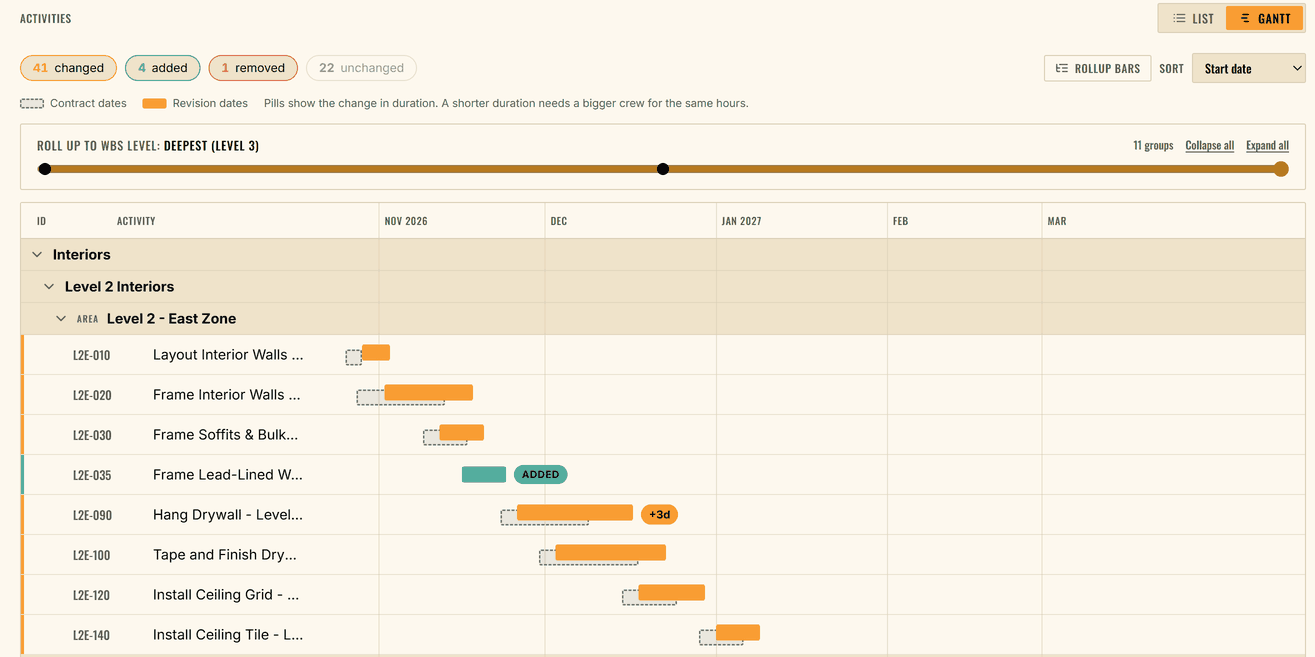
No account is needed. Both schedules are read in your browser and nothing is saved. Saving the comparison or exporting it to Excel, CSV or PDF needs an account, free for 30 days.
What should I do with the changes?
Start with the activities whose durations got shorter, then the ones that moved into weeks you are already busy:
- Re-load your crews for the new dates and check what happens to your peak. Our free manpower loading chart template works for a short scope, and Labor Loader rebuilds the chart from the new schedule.
- Tell the GC early when a new duration is tighter than the crew you can provide. It is easier to fix in the schedule than in the field.
- Keep both versions. If the job falls behind, dated schedules and the crew you planned against each one are your record of what changed and when.
For what the GC expects in a manpower-loaded schedule, see our guide to what to send back when your GC asks for one.